How to move your patterns out of Cross Stitch Saga
Cross Stitch Saga saves patterns only in its own .saga format, and since May 2025 the app has been available only for iPhone and iPad. To keep your patterns on an Android phone, in Pattern Maker on a PC or in another app, export the .saga file from Saga, convert it to .xsd, and open that file in the new app. It takes a couple of minutes per pattern and is free.
Before you start: the chart itself moves (stitches, threads, symbols, notes), but your stitching progress stays in Saga. If you are in the middle of a project, note where you are. What carries over, in detail.
Step 1: Export the pattern from Saga
Saga can't save a pattern as PDF, XSD or any other chart format, only as a .saga file. That file is what you need:
- Open Cross Stitch Saga on your iPhone or iPad and go to your list of patterns.
- Open the pattern's menu and choose the option to export or share it as a SAGA file (Saga's help calls it "export a pattern as SAGA file"). The wording can differ between app versions.
- Save the file where you can reach it from the device you'll convert on: the Files app, iCloud Drive, AirDrop to a Mac, an email to yourself or a cloud drive.
Repeat this for every pattern you want to keep. Each pattern is its own file.
Already have .saga files, from a backup, an email or an old phone? Skip to step 2.
Step 2: Convert the file to XSD
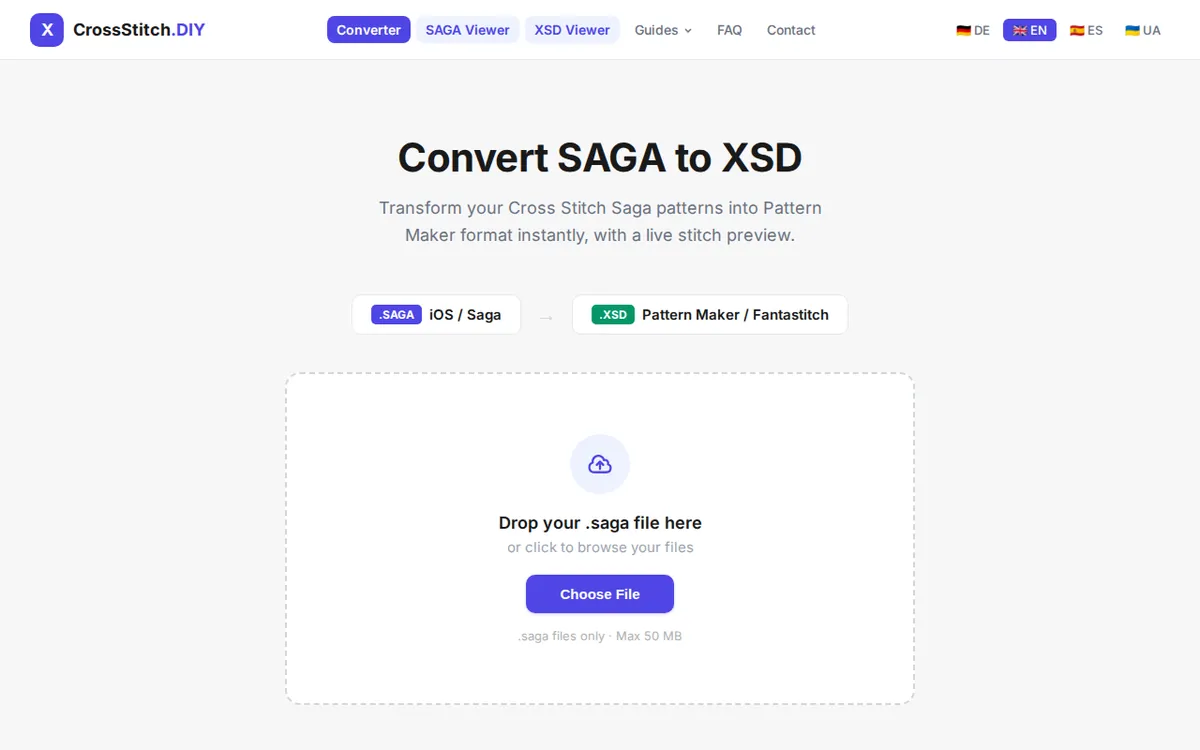
Open the converter on any device, tap Choose File and pick the .saga file (on a computer you can also drag it onto the page). No account is needed.
After a few seconds the whole pattern appears in a preview. Zoom in and check it before you download: every stitch, backstitch and color is shown, and the color list gives each thread with its brand, number and stitch count.
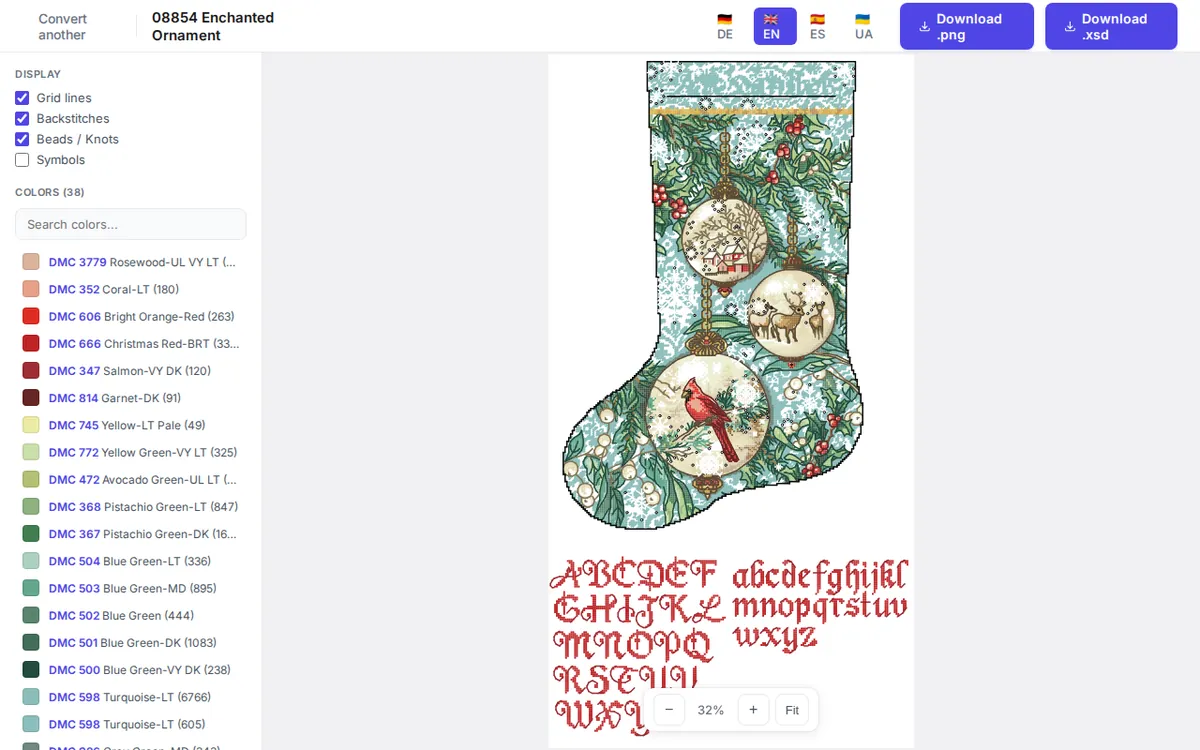
If the pattern uses a thread palette that Saga and Pattern Maker don't recognize, the preview tells you and lets you choose the brand first. Then tap Download .xsd. The download link stays valid for an hour.
Step 3: Open the XSD file in your new app
On an Android phone or tablet
Copy the .xsd file to the phone (or download it there directly in step 2) and open it from the app's import function. Apps that read .xsd include Cross Stitch Paradise and MyCozyApp.
In Pattern Maker on Windows
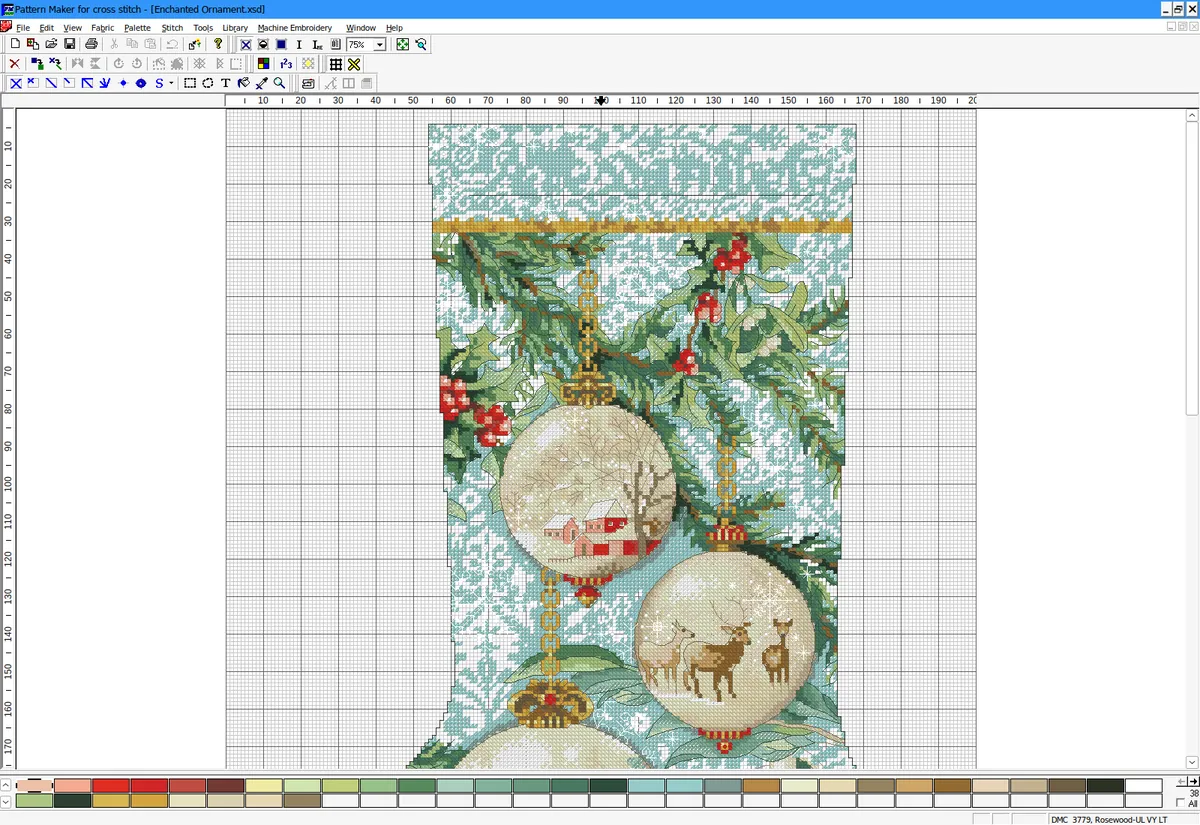
Open the file with File → Open. Pattern Maker for Cross Stitch is no longer sold (its maker closed at the end of 2019), but installed copies open the converted files with symbols, strands and the floss list.
In another iPhone or iPad app
Apps such as StitchHub and MyCozyApp import .xsd files, so the converted file also works if you change apps but stay on your iPad.
For more apps on every platform, and a viewer that needs no app at all, see how to open an XSD pattern on any device.
Common questions
Can't I just open the .saga file in another app?
Only in the few apps that read it. A .saga file is in Saga's own format, which Pattern Maker and most other apps can't open. The XSD format is read much more widely.
Is my original pattern changed?
No. Saga keeps the pattern, and the .saga file you exported stays as it is. You can convert it again at any time.
Can I look at a .saga pattern without converting it?
Yes: the SAGA viewer opens it in the browser.
Ready to move a pattern?
Upload the .saga file, check the preview, download the .xsd.